EC2
Amazon Elastic Compute Cloud (EC2) 筆記。
Sizing & Configuration Options
- OS: Linux, Windows, MacOS
- CPU, RAM
- Storage Space:
- Network-attached (EBS, EFS)
- Hardware (EC2 Instance Store)
- Network card: Speed of the card, Public IP address
- Firewall rules: Security group
- Bootstrap script: EC2 User Data Script (configure at first launch)
User Data Script
- Runs with root user
- Automate boot tasks:
- Installing updates
- Installing software
- Downloading common files from the internet
#!/bin/bash
## Use this for your user data (script from top to bottom)
## install httpd (Linux 2 version)
yum update -y
yum install -y httpd
systemctl start httpd
systemctl enable httpd
echo "<h1>Hello World from $(hostname -f)</h1>" > /var/www/html/index.html
Instance Types
C - Compute Optimized
Great for compute-intensive tasks:
- Batch Processing workloads
- Media transcoding
- High performance web servers
- Gaming Servers
R - Memory Optimized
Fast performance for workloads:
- High performance RDB or non-RDB
- Distributed web scale cache stores
- In-memory db optimized for BI
- Real-time processing of big unstructured data
I, G, H - Storage Optimized
Great for storage-intensive tasks that require high, sequential read and write access:
- High frequency OLTP systems
- Relational & NoSQL databases
- Cache for in-memory databases
- Data warehousing applications
- Distributed file systems
Security Groups
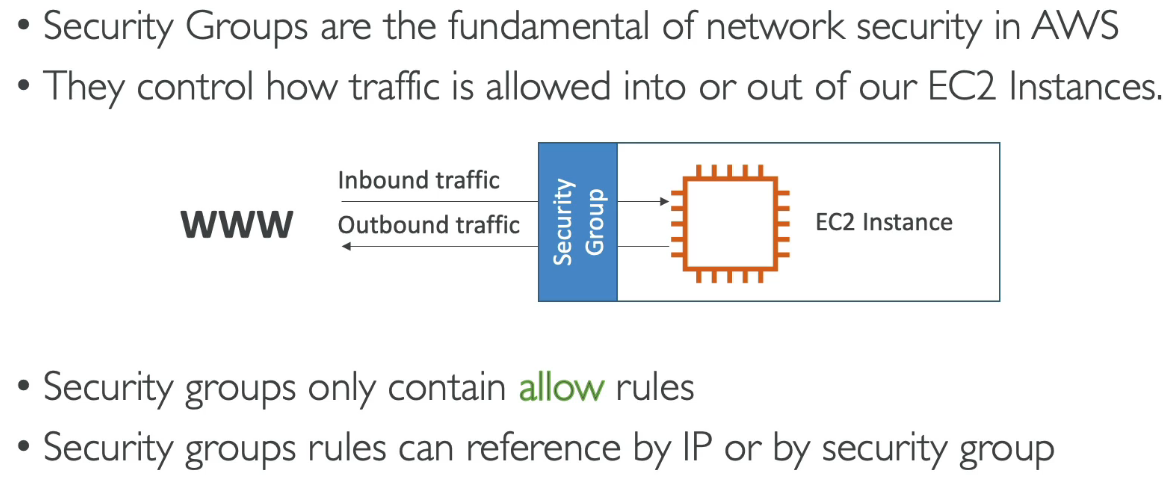
Acting as a firewall on EC2 instances. Regulate:
- Access to Ports
- Authorized IP ranges - IPv4 & IPv6
- Control of inbound network (from other to the instance)
- Control of outbound network (from the instance to other)
Good to Know
- SG can be attached to multiple instances
- Locked down to a region/VPC combination
- Lives
outsidethe EC2 - if traffic is blocked, EC2 instance won’t see it - Good to maintain one separate security group for SSH access
- If your application:
- Is not accessible (time out) → Security group issue
- Gives
connection refusederror → Application error or not launched
- All inbound traffic is blocked by default
- All outbound traffic is authorized by default
Ports
| Port | Protocol | Description |
|---|---|---|
| 22 | SSH | Log into a Linux instance |
| 21 | FTP | Upload files into a file share |
| 22 | SFTP | Upload files using SSH |
| 80 | HTTP | Access unsecured websites |
| 443 | HTTPS | Access secured websites |
| 3389 | RDP | Log into a Windows instance |
SSH into EC2 Instance
Linux / Mac OS X
chmod 0400 EC2Tutorial.pem
ssh -i EC2Tutorial.pem ec2-user@54.95.249.238
Windows 10
ssh -i .\EC2Tutorial.pem ec2-user@54.95.249.238EC2 Instance IAM Roles
Do not configure credentials in EC2 Instance - this is a security risk. Use IAM Roles instead.
Navigate: Instances → Actions → Security → Modify IAM role
Purchase Options
| Option | Description |
|---|---|
| On-Demand | Short workload, pay by second |
| Reserved | 1 & 3 years, up to 72% discount |
| Savings Plans | 1 & 3 years, commitment to usage amount |
| Spot Instances | Short workloads, up to 90% discount, can lose instances |
| Dedicated Hosts | Book entire physical server, most expensive |
| Dedicated Instances | No other customers share your hardware |
| Capacity Reservations | Reserve capacity in specific AZ |
Spot Instances Use Cases
Useful for workloads resilient to failure:
- Batch Jobs
- Data Analysis
- Image Processing
- Distributed workloads
- Flexible start/end time workloads
Not suitable for critical jobs or databases.
Ways of Accessing EC2
- Open port 22 and use SSH keys
- Use EC2 Instance Connect (still requires port 22)
- Use Session Manager (needs IAM Role:
AmazonSSMManagedInstanceCore)
AMI (Amazon Machine Image)
- Customization of an EC2 instance
- Built for a specific region (can be copied across regions)
- Can launch EC2 instances from:
- Public AMI (AWS provided)
- Your own AMI
- AWS Marketplace AMI
Instance Store
- High-performance hardware disk attached to EC2
- Better I/O performance
- Data is lost if instance is stopped/terminated
- Good for buffer, cache, scratch data, temporary content